How to Subscribe
Subscribe to a series and new shiurim arrive in your podcast app automatically, as they are published. It is free, and no account is needed on this site.
What you need
- A podcast app — Apple Podcasts, or any other; most are free.
- The series’ feed address. On any series page, click Copy feed URL (there is one for the audio feed and one for the video feed). On many devices the Subscribe button copies the address for you.
Then tell your app to follow that address — this is a one-time step per series:
iPhone and iPad
Tap Subscribe on the series page — your podcast app (Apple Podcasts, Downcast, or whichever you use) will ask to open the series; confirm, and you are subscribed.
If that does not happen, subscribe by address instead:
- Copy the feed address (above).
- Open the Podcasts app, go to Library, and tap ⋯ at the top.
- Choose Follow a Show by URL…, paste the address, and tap Follow.
Mac — Apple Podcasts
- Copy the feed address.
- Open the Podcasts app.
- In the File menu, choose Follow a Show by URL…, paste the address, and confirm.
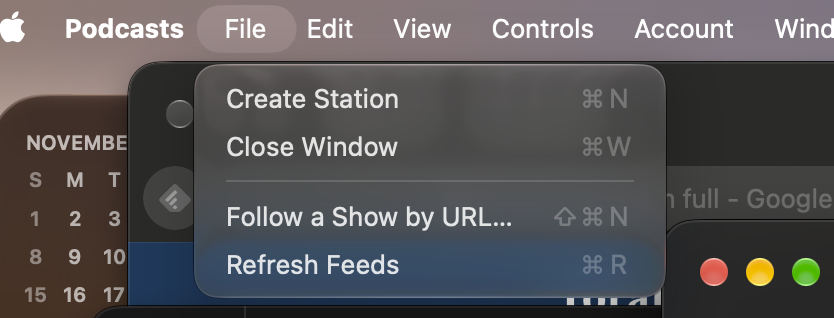
The File menu in Apple Podcasts on a Mac — “Follow a Show by URL…” is right there.
Android
Tap Subscribe on the series page and pick your podcast app — or copy the feed address and use the app’s Add by URL option (usually under Search or the + button).
Windows
Copy the feed address and paste it into your podcast app’s Add by URL / Follow a Show by URL option. In YouTube Music (in a browser): Library → Podcasts → Add podcast → Add by RSS feed.
Listening on 24Six?
These shiurim are also carried by 24Six — no subscription steps are needed there; just search for the series in the app.